
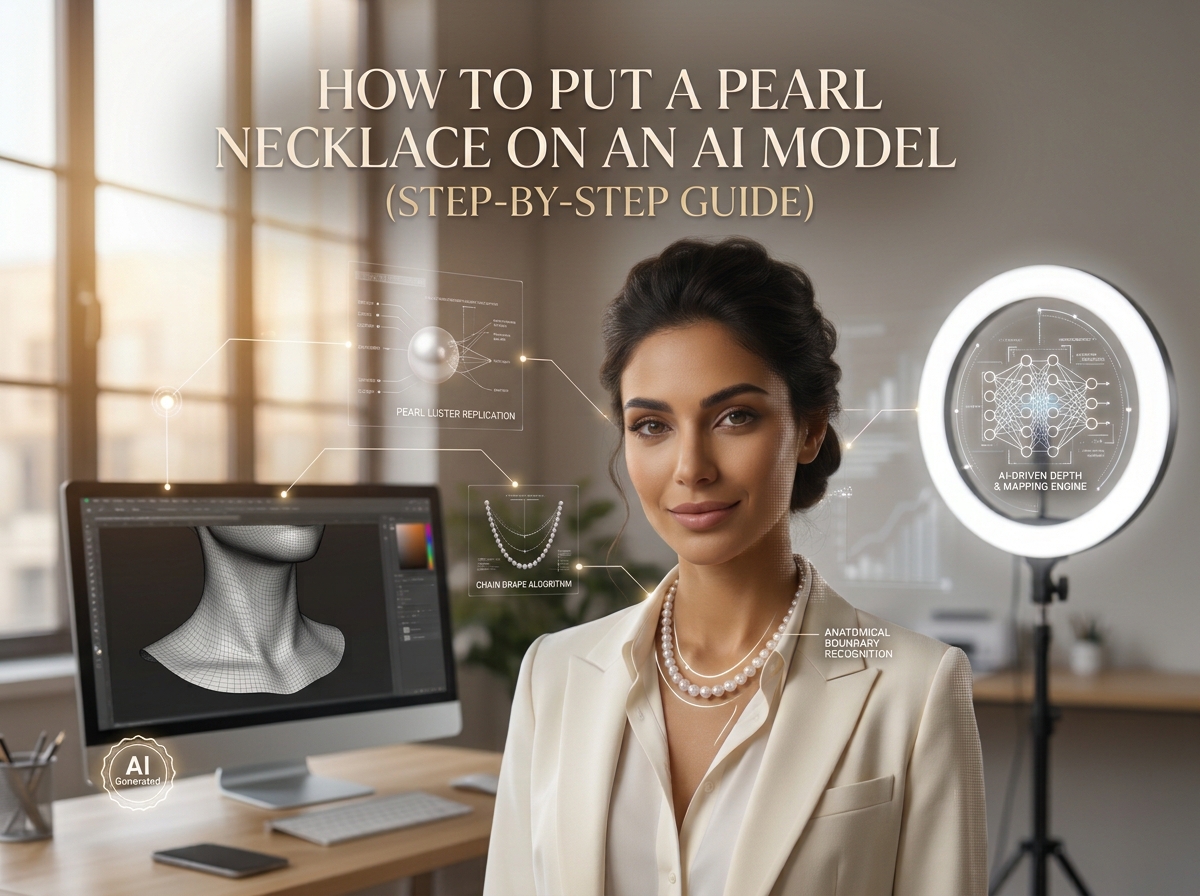
If you run an ecommerce jewelry brand, you already know how expensive model photoshoots can get. Hiring models, booking studios, and setting up proper lighting drains both time and budget. While AI tools have made getting virtual model photos much easier, generating pearl photos is a whole different story. Pearls are notoriously tricky. Their soft lustre, unique weight, and subtle drape around the neck often confuse standard AI tools, turning a delicate strand into a clumpy, unrealistic string of plastic beads.
AI pearl necklace model rendering is the process of taking a flat-lay product photo of a pearl necklace and using specialized generative AI to automatically fit it onto a realistic virtual human model. When done correctly, it captures accurate pearl reflections, natural placement against the skin, and realistic chain drape in seconds.
That’s a game-changer for jewelry sellers, because pearls are all about subtle details and elegance—if the photo looks fake, shoppers won't buy. With proper image cleanup, the right prompt setup, and dedicated AI tools, you can easily create high-converting, studio-quality model images. Before we dive into the exact technical steps, here is a quick cheat sheet on how to pair different pearl necklace styles with the right AI model poses and necklines.
Quick Matching Matrix: Pearl Necklace Styles vs. AI Model Setup
Necklace Style | Average Length | Recommended Neckline | Model Pose & Camera Framing | Key Rendering Focus |
Pearl Collar | 12–13 in | Strapless, Off-Shoulder | Close-up portrait, straight neck | Fit snugly around lower neck; prevent fabric overlap |
Pearl Choker | 14–16 in | Strapless, Off-Shoulder, Scoop Neck | Close-up portrait, 45° or frontal angle | Keep neck elongated; fit tightly above collarbone |
Single Strand (Princess) | 18 in | V-Neck, Open Collared Shirt | Natural frontal pose, relaxed shoulders | Let the strand drape naturally just below collarbone |
Pendant Pearl Necklace | 16–18 in | V-Neck, Sweetheart Neckline | Close-up to mid-torso | Preserve fine chain grid; keep focal pearl scale 1:1 |
Multi-Strand / Layered | 16–20 in | Strapless, Wide V-Neck | Stationary frontal torso | Maintain clear separation between each strand |
Y-Shape & Lariat | 20+ in | Deep V-Neck, Plunging Neckline | Half-body shot, upright posture | Leave enough vertical canvas for the drop pendant |
Why Traditional AI Generators Fail with Pearl Necklaces
Having a quick matrix is great, but fixing bad photos starts with knowing where standard AI tools usually mess up.
While generic AI handles simple clothing or basic silver rings just fine, pearls are a whole different beast. It’s rarely a prompt issue—standard image generators just don't know how to handle pearl highlights or how a necklace actually sits against a neck.
1. Pearl Luster vs. Cheap Plastic Shininess
Real pearls don't shine like polished gold or silver. They have a soft, deep glow—often with subtle overtones of rose, silver, or peacock green underneath. Standard AI generators usually flatten these delicate layers of light, leaving your pearls looking like dull, cheap plastic beads.
2. Clumpy Pearls and Merged Strands
Whether it's a single strand or a layered piece, each pearl needs clear spacing and a distinct round shape. Unoptimized AI engines easily get confused by rows of small round objects. Instead of showing individual, crisp pearls, they often bleed them together into an awkward white blob.
3. Chains Cutting into the Skin
Standard AI tools don't understand basic human anatomy or how a necklace drapes over clothing. Without strict boundaries, the AI will often render the chain cutting right through the model’s collarbone or neckline—creating weird glitches that instantly look fake to prospective buyers.
Step-by-Step Technical Guide: Preparing & Rendering Pearl Necklaces
Now that you know where standard AI tools run into trouble, let's look at how to actually get clean, photorealistic images. You don't need fancy editing skills or complex prompt magic—it mostly comes down to how you frame your product photo and set up your model.
Here is the simple, step-by-step workflow for rendering pearl necklaces on virtual models.
Step 1: Start with a Clean, Clutter-Free Photo
You don't need to manually cut out clasps or erase background extension chains before uploading. Dedicated jewelry generators naturally recognize necklace construction and hide the back closure behind the neck. Your main focus is giving the tool a clear view of the front piece.
Keep the strand lay flat and neat: Lay the necklace out smoothly without letting the pearls twist or bunch together. The clearly defined outline of each bead makes it much easier for the AI to preserve the exact count and shape of your necklace.
Use a simple background with high contrast: A clean white or light gray background works best. Avoiding harsh shadows and distracting props helps the tool cleanly separate the delicate chain from the background.
Step 2: Set the Right Photo Framing and Aspect Ratio
Pearl necklaces are all about balance and proportion. Setting up your image canvas correctly keeps the necklace from looking stretched or distorted on the model.
Choose the right aspect ratio for the length: For shorter pieces like collars and chokers (12–16 inches), a 3:4 or 4:5 vertical portrait crop works best. For longer strands or drop pendants (20+ inches), use a taller 9:16 frame so the pendant has room to flow naturally down the chest.
Don't crop too close to the necklace: Leave about 10–15% margin around the edges of your product. Giving the product some room to breathe allows the tool to size the necklace accurately against the model's neck and collarbone.
Step 3: Preserve Your Pearl Structure and Bead Count
One of the biggest fears for jewelry sellers is delivering a product that looks different from the listing photo. If your original necklace has 45 distinct pearls, you don't want the generator adding or dropping beads.
Use dedicated jewelry rendering tools: Generic AI image generators usually attempt to recreate your item from scratch based on text descriptions, which almost always alters the original design. Specialized tools lock down the precise layout of your photo, mapping your exact necklace onto the model without changing the pearl count or shapes.
Keep text prompts focused on the model, not the necklace: Avoid describing the pearls in heavy detail inside your prompt (e.g., "a necklace with 30 white round 8mm pearls"). Detailed descriptions often cause the AI to guess and redraw the piece. Instead, describe only the model's ethnicity, pose, hairstyle, and studio lighting, letting your uploaded photo handle 100% of the jewelry details.
Step 4: Fine-Tune Lighting and Natural Pearl Luster
Once the necklace sits cleanly on the model, the final touch is making sure the studio lighting matches naturally across both the skin and the pearls.
Opt for soft, diffused studio light: Direct, heavy sun or harsh flash creates bright white hot spots on pearls that look like digital glare. Select soft front light or natural window lighting presets to highlight the gentle luster without blowing out the pearl texture.
Match the skin undertone to the pearl overtone: Warm golden pearls look best on warm skin tones or earthy clothing, while bright white or Tahitian black pearls pop against cool skin tones and neutral tops. Aligning your model setup with your pearl style creates a seamless, high-end look.
Matching Pearl Types with the Right AI Model
A technically perfect render can still look completely wrong if the pearl type clashes with your model setup. Freshwater strands and high-end South Sea pearls reflect light in entirely different ways—you simply can't treat them with a cookie-cutter lighting setup.
Here is what each pearl variety needs before you start rendering:
Freshwater Pearls: Soft luster and subtle organic shapes are their calling card. They don't need heavy studio glare—in fact, making them look glass-smooth turns them into cheap plastic beads.
Akoya Pearls: High visual contrast is key. Akoyas rely on mirror-like reflections and subtle pink overtones, so crisp softbox lighting and cool skin tones naturally bring out their high-end shine.
South Sea Golden Pearls: Color temperature will make or break a golden pearl render. Cold white studio lamps bleach their rich honey tones into a dull yellow, so stick to warm tungsten light and olive or deeper skin tones.
Tahitian Black Pearls: Flat lighting destroys their metallic depth. To pull out those signature peacock and steel overtones, use angled side lighting that creates strong highlights against darker necklines and richer skin tones.
Here is a quick reference table for your model setups:
Pearl Type | Ideal Skin Tone & Styling | Recommended Studio Lighting | Key Visual Goal |
Freshwater | Warm to medium skin; casual knits, open collared shirts | Bright, natural window light | Preserve natural, slightly organic bead shapes |
Akoya | Fair to cool skin; sleek tailorship, blazers, strapless tops | Crisp studio softbox | Emphasize sharp, mirror-like surface reflections |
South Sea Golden | Warm, olive, or deep skin; cream, champagne, earth tones | Warm tungsten or sunset light | Hold rich honey hues without bleaching them out |
Tahitian Black | Cool fair or deep skin; plunging necklines, dark tops | Directional side light | Highlight peacock and steel overtones against skin |
Frequently Asked Questions (FAQ)
Why do my AI-generated pearl photos look blurry or lose their shape?
This usually stems from a low-resolution flat-lay photo or heavy background shadows. If the generator can't clearly parse the boundaries between individual beads, it bleeds them together into a single blurry strand. Always upload sharp, high-contrast product photos on a plain background, and make sure your input image isn't cropped too tightly around the necklace edges.
How do I stop the necklace chain from cutting into the model's skin?
Chain floating or skin clipping occurs when generic image generators fail to recognize human anatomical boundaries. Dedicated jewelry AI tools use targeted depth recognition to ensure the chain drapes naturally over collarbones and clothing. If you see cutting or clipping, adjust your aspect ratio to give the model's upper torso more breathing room, or slightly lower the prompt weight on the background so the necklace structure stays locked.
Will using AI models cause "item mismatch" complaints from buyers?
Not if you use tools built specifically for jewelry products. Generic text-to-image generators build new jewelry from scratch based on text prompts, which creates a visible mismatch between your listing photo and the actual item in the box. Specialized jewelry tools drape your exact flat-lay photo directly onto the model, preserving bead counts, strand lengths, and clasp placement 1:1 so customer expectations match what arrives in the mail.
What is the best way to light dark Tahitian or Golden pearls?
Avoid bright white or harsh overhead light. Golden pearls wash out easily under cool daylight, so use warm tungsten or sunset studio presets. Tahitian black pearls need angled side lighting to bring out their iridescent peacock or steel overtones against the skin without turning into flat, dark circles.
How do I make the pearls look like they are sitting naturally on clothing, rather than floating?
Floating jewelry happens when the lighting on your flat-lay photo clashes with the shadows on the model's top. Matching the lighting direction between your product image and your model preset solves this instantly. When the light angles align, the AI automatically generates subtle contact shadows under each pearl, making the strand rest naturally against the skin or fabric rather than looking copy-pasted.
Can I use AI models for multi-strand or layered pearl necklaces without the strands tangling?
Yes, but you need to ensure clean strand separation in your flat-lay image before uploading. Multi-strand necklaces often fail in AI tools if the strands overlap messily in the source photo, causing the engine to guess where each line goes. Arrange your multi-strand piece neatly on a flat surface with clear space between each line, allowing the depth-mapping engine to trace each strand individual-by-individual without merging them together on the model.
Final Thoughts
Selling pearl necklaces online comes down to visual trust. High-end pearl jewelry carries a premium price tag, and shoppers want to see how the strand drapes, reflects light, and matches actual skin tones before hitting "buy."
You don't need expensive studio hires or elaborate camera setups to create editorial-grade catalog photos anymore. At aijewelrymodel.com, we built an AI model generator specifically designed for jewelry brands. With over 600 photorealistic model templates and precision lighting presets, our platform locks down your original product geometry and maps your flat-lay photos onto real models in seconds—no phantom beads, no clumpy strands, and no dull lusters.
Ready to turn your flat-lay photos into high-converting model shots? [Try AI Jewelry Model Generator today] and render your first product in studio quality.